¶ PARS Account Setup Guide
Welcome to the PARS account setup guide, where we'll walk step by step through the first time set up process for your PARS account after our migration to Azure. The process has a few steps, but follow along and we'll be done in a few minutes and PARS logins will be smooth and secure.
¶ 1. Start by going to https://pars.doe.gov
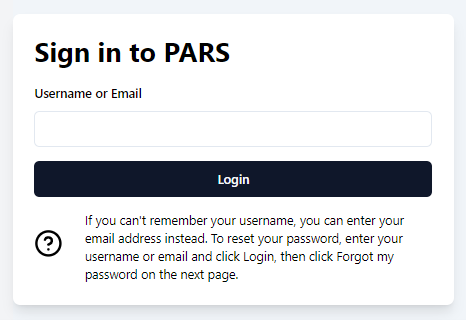
¶ 2. Enter your username or email
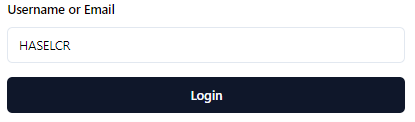
You can now use either your PARS account username or your email here - if you can't remember your username, the system will remember it for you and provide it to the next page.
Makse sure you use the same email you used to sign up for PARS.
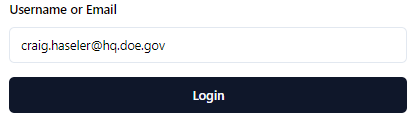
OR
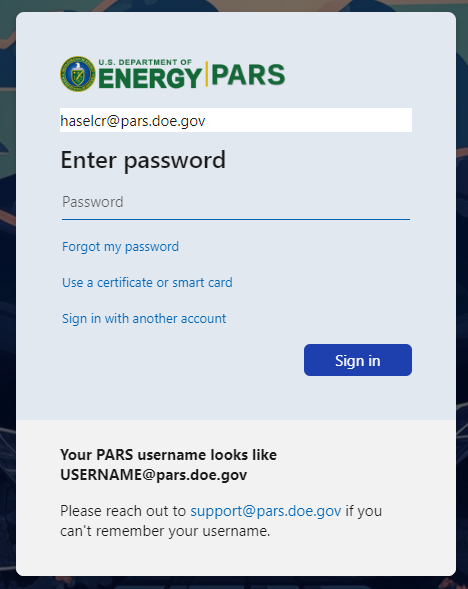
¶ 3. Choose Forgot my password
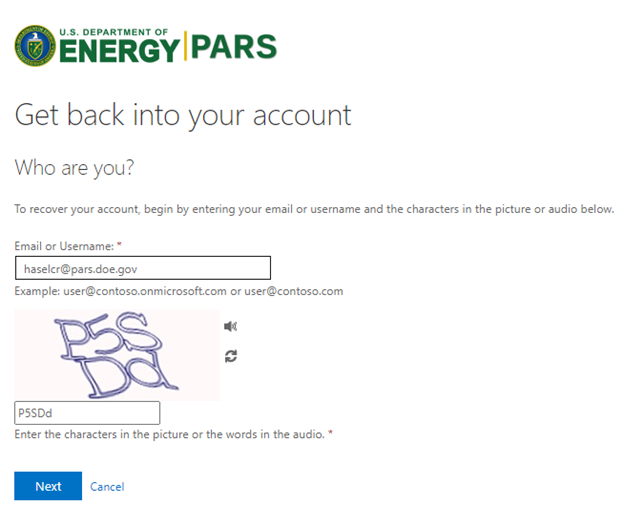
¶ 4. Enter the CAPTCHA and click [Next]
Make sure you don't change your username here - this is your PARS account. If you change it to your email address you might end up resetting your DOE password instead.
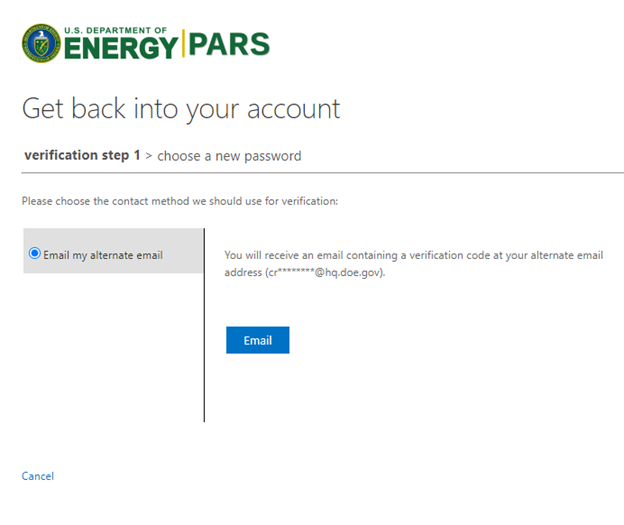
¶ 5. Click on [Email]
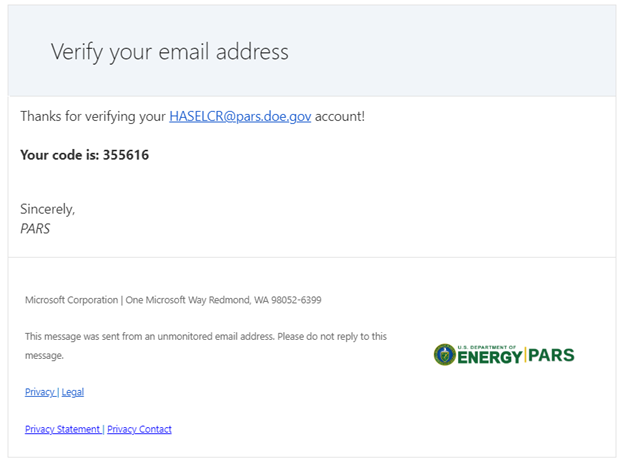
¶ 6. Check your inbox for an email like this, and copy the code
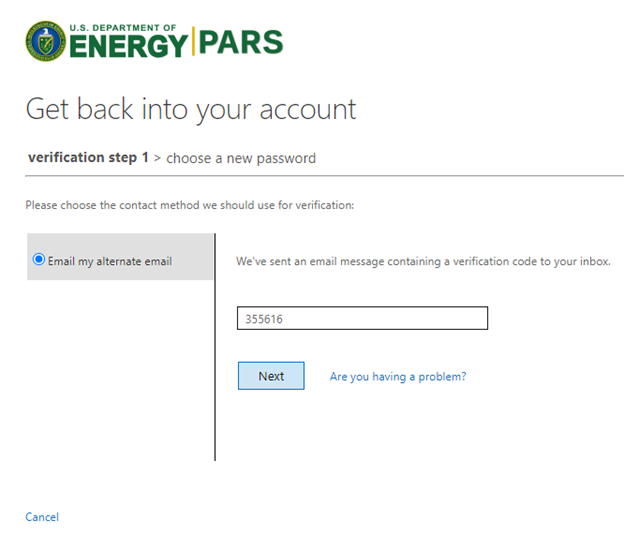
¶ 7. Enter the code and click [Next]
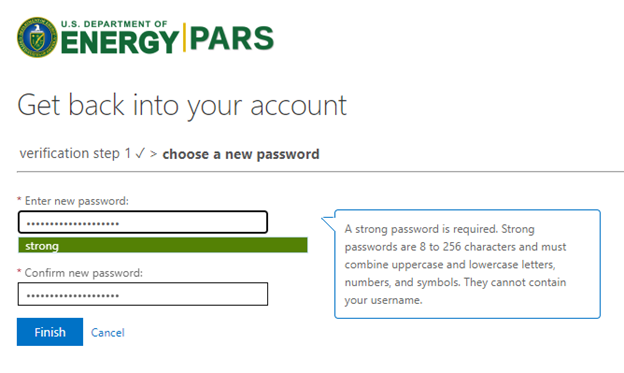
¶ 8. Choose a secure password. Consider saving it in a Password Manager. Click [Finish]
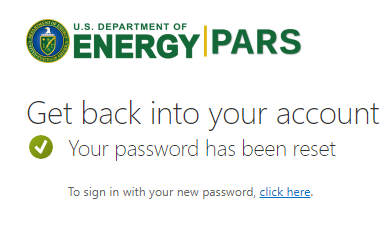
¶ 9. Great work! Click on the link
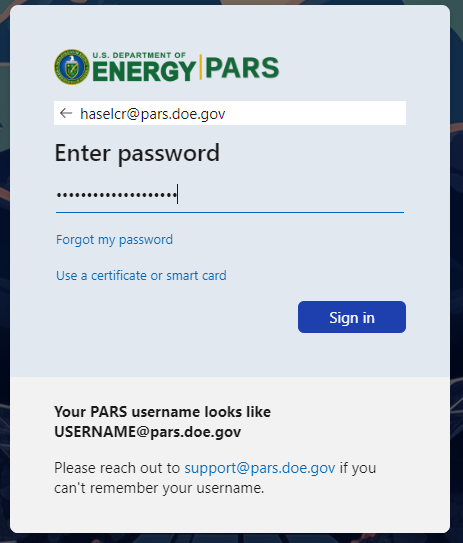
¶ 10. Sign in with your new Password
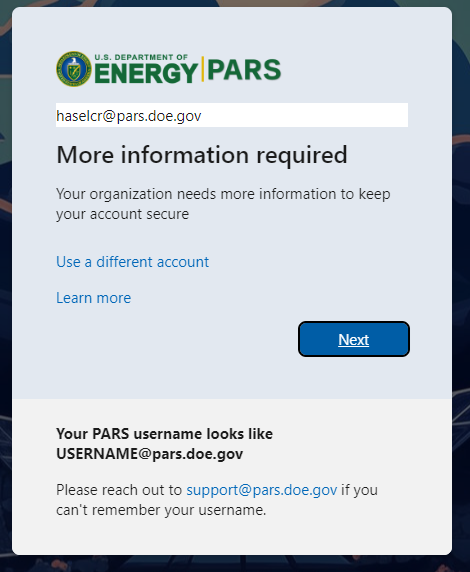
¶ 11. Click [Next]
¶ 12. Now we need to install Microsoft Authenticator. Click Download Now
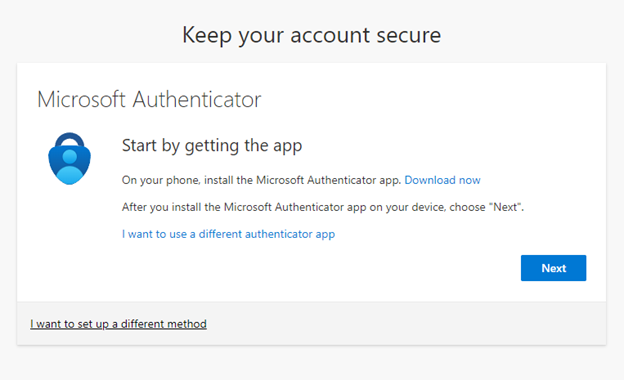
You can configure a different authenticator application, if you are unable to install the Microsoft Authenticator, or prefer to use another option. Click 'I want to use a different authenticator app' and follow the instructions on the next page to add the authenticator method in your app of choice (Google Authenticator, Entrust, KeePass, etc.).
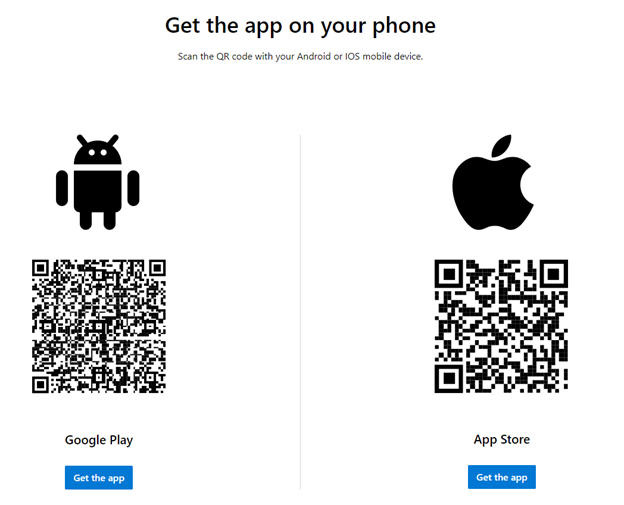
¶ 13. Install the Authenticator App from Microsoft on your phone
Your personal phone works for this - you're not accessing the PARS application and PARS / the government does not get access to anything on your phone. This is an application owned by Microsoft used only for providing your identity for login security.
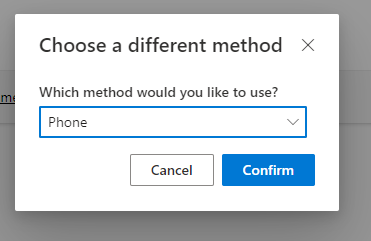
Can't install apps or not allowed a smart phone in your secure office? Click on 'I want to set up a different method' and select Phone to have the system phone your office number. Note that this is a temporary option and you will be required to register a PIV card in the future.
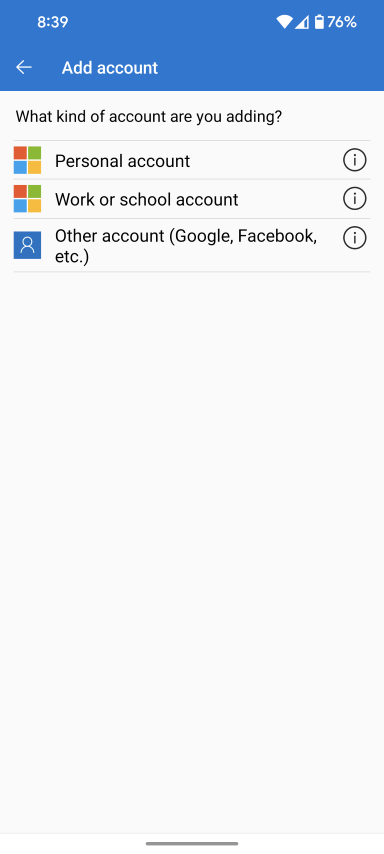
¶ 14. Once you've installed Authenticator, open it and click on the + button at the top of the page. Then click Work or school account
You may already have other accounts for your DOE email or other websites here. Make sure to create a new account using the + button from the main menu.
¶ 15. Click Scan a QR Code. On your computer, click [Next] twice until you see the QR code to scan
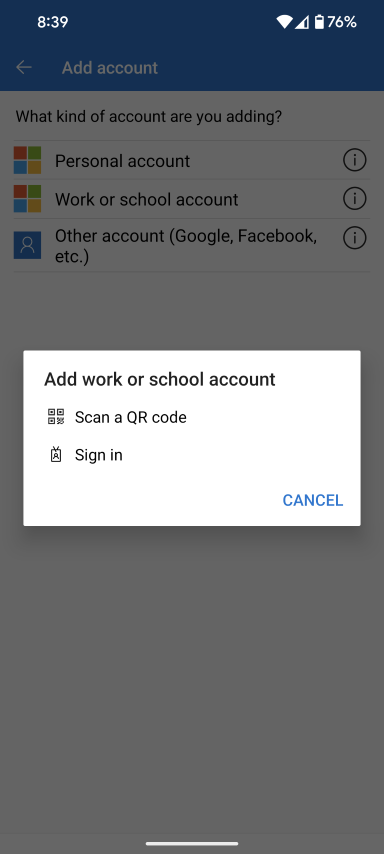
¶ 16. You now have authenticator set up. Return to your computer, and click Next
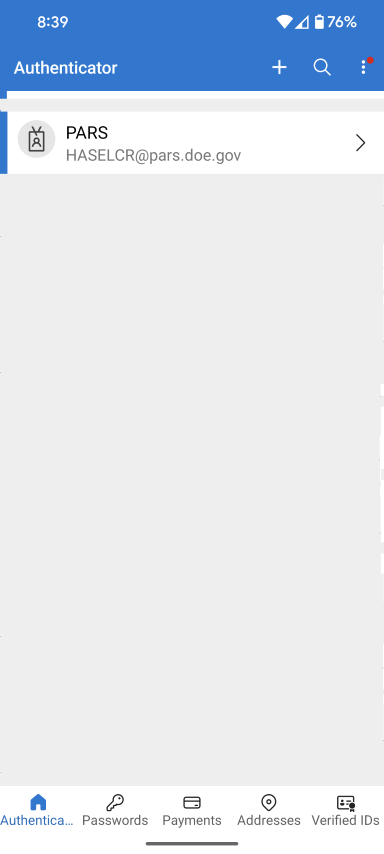
¶ 17. Tap on the notification
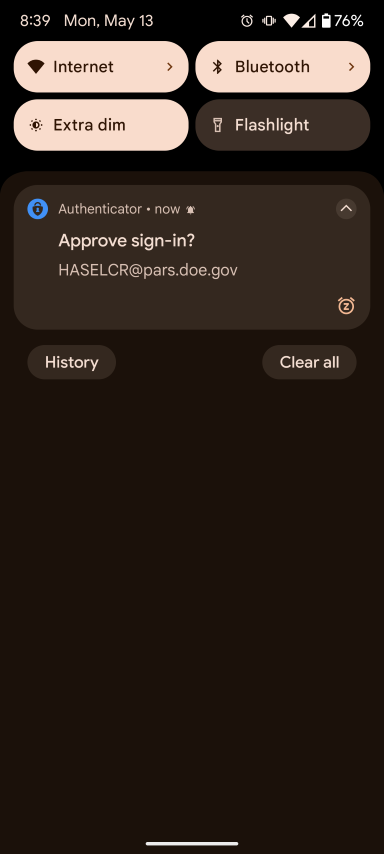
¶ 18. Enter the number on your computer into your phone
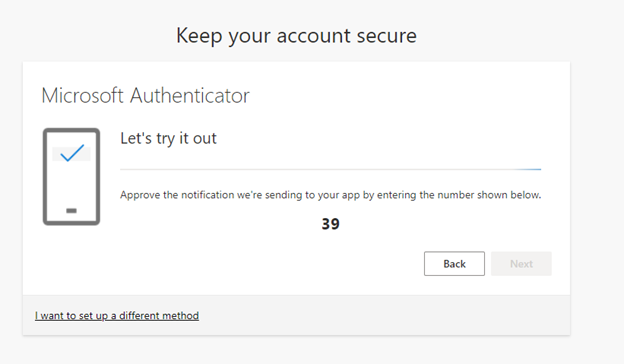
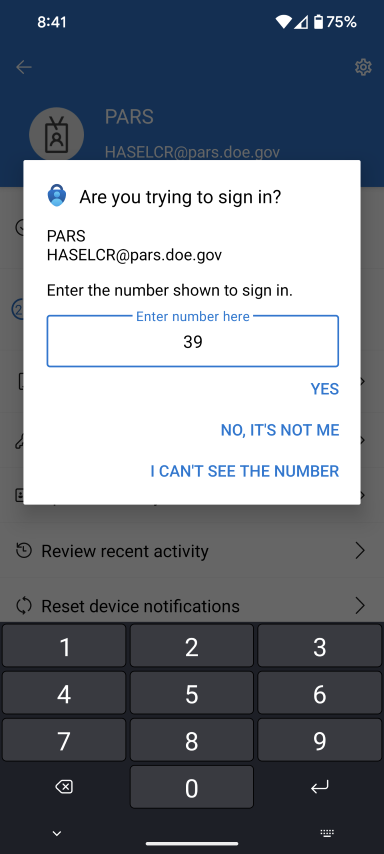
¶ 19. Great work! Almost there now. Click [Next]
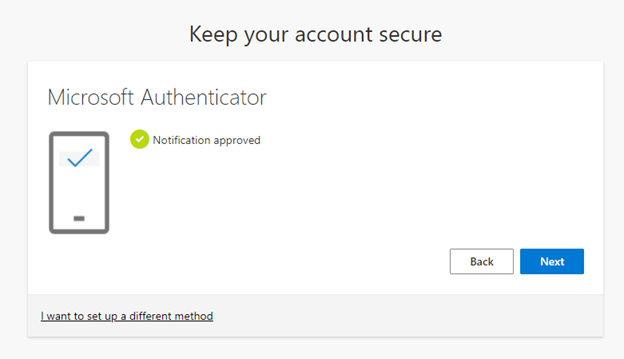
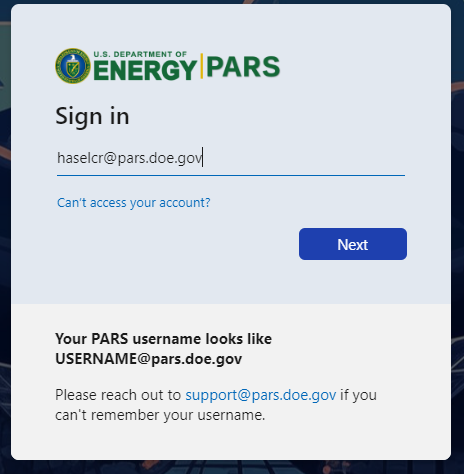
¶ 20. You'll have to remember your username this time, and add @pars.doe.gov
Already forgot? No problem - head back to https://pars.doe.gov and enter your email again.
¶ 21. One last notification to tap and number to enter
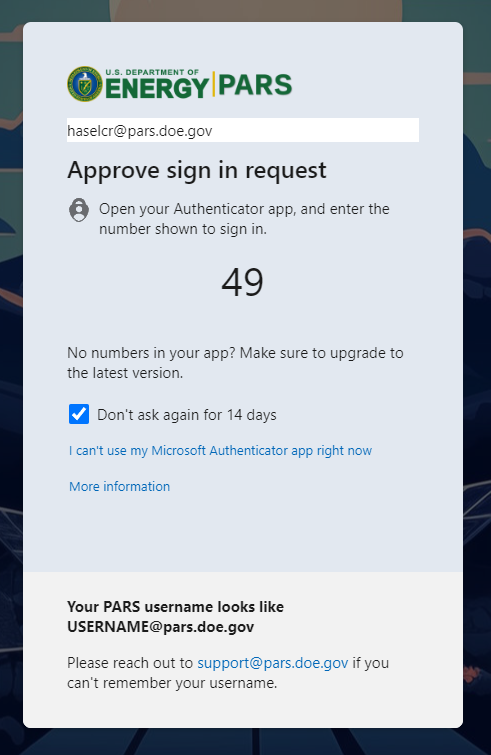
Check the blue "Don't ask me for 14 days" box before tapping your notification to make sure it doesn't bother you with this for a couple of weeks
¶ 22. You did it! Welcome to the new PARS!
Now go get that coffee, you earned it!