¶ Preferences Page
Manage your account settings, notification preferences, and calendar integration.
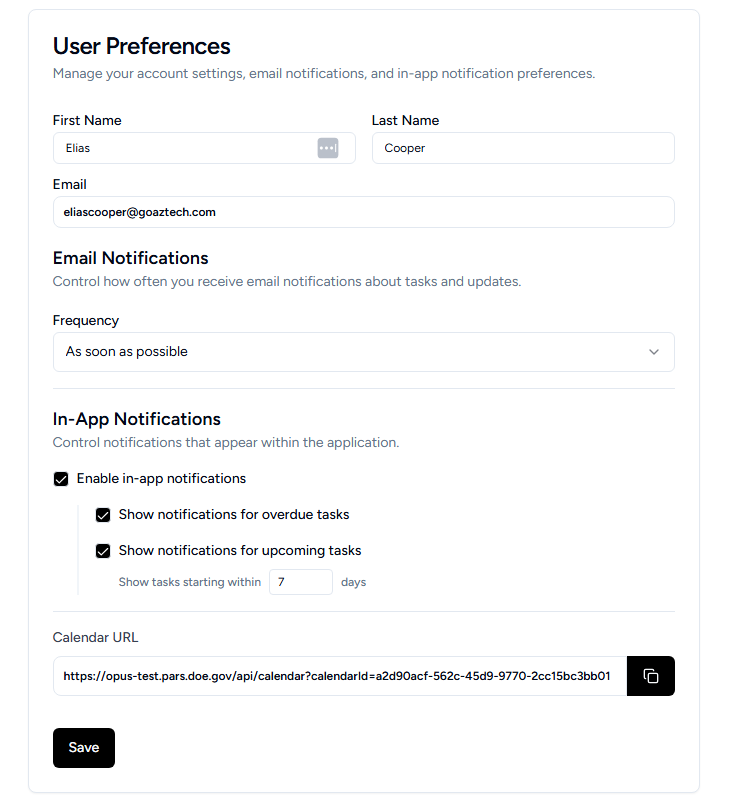
Account Information
Basic profile information:
- First Name: Your first name (editable)
- Last Name: Your last name (editable)
- Email: Your email address (read-only, cannot be changed)
Email Notifications
Control how often you receive email notifications about tasks and updates.
Frequency Options:
- As soon as possible: Receive emails immediately when events occur
- Once daily: Receive a single daily digest of all notifications
- Weekly: Receive a weekly summary of notifications
In-App Notifications
Control notifications that appear within the application when you log in.
Master Toggle:
- Enable in-app notifications: Turn all in-app notifications on or off
When Enabled, Choose What to See:
- Overdue Tasks Notification:
- Checkbox: "Show notifications for overdue tasks"
- When enabled, you'll see alerts for tasks past their due date - Upcoming Tasks Notification:
- Checkbox: "Show notifications for upcoming tasks"
- When enabled, you'll see alerts for tasks starting soon
- Days Ahead Setting: Enter a number (1-30) for how many days in advance to be notified- Example: Enter "7" to see tasks starting within the next 7 days
- Default: 7 days
Calendar URL
Personal calendar feed for integration with external calendar applications (typically, Outlook).
To subscribe:
-
Copy the URL.

-
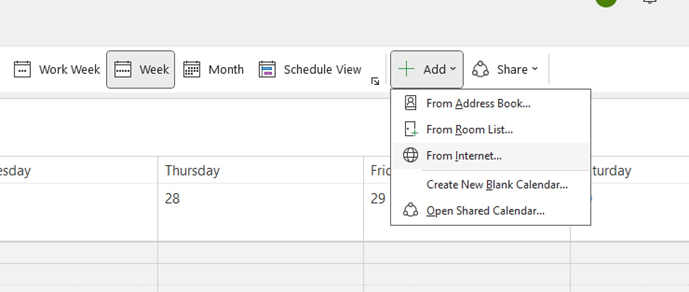
In Outlook, navigate to your calendar, click “+ Add”, and select “From Internet…”
-
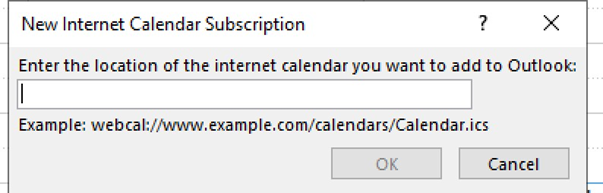
Paste the URL into the input and click OK.
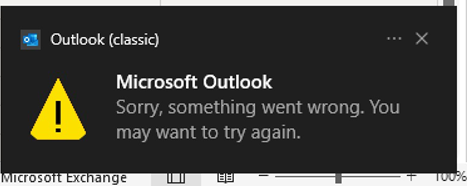
Note: The following warning may appear, but don’t worry…the calendar will still appear. Just give it time.