¶ Project Page
The Project page displays a comprehensive dashboard for managing and monitoring all tasks within a project. The page header shows project details, status, dates, description, tags, and RACI assignments, with an edit button for Project Owners and Admins. The page includes three collapsible accordion sections with project-level insights and management tools.
To view details about viewing and editing Tasks, see here.
Page Header
Purpose: Displays key project information and metadata at the top of the page.
- Project Name and Status: Color-coded status indicator (To Do, In Progress, Done, Ongoing, and OBE)
- Start Date: Project start date (or "Not set" if not defined)
- Due Date: Project due date (or "Not set" if not defined)
- Completion Date: Displayed when project is marked complete
- Project Description: Brief summary of the project
- Project Tags: Badges showing all tags associated with the project
- RACI Matrix: Four-column grid displaying Responsible, Accountable, Consulted, and Informed contacts
For Admins & Project Owners:
- Edit Button: Pen icon to modify project details
¶ 
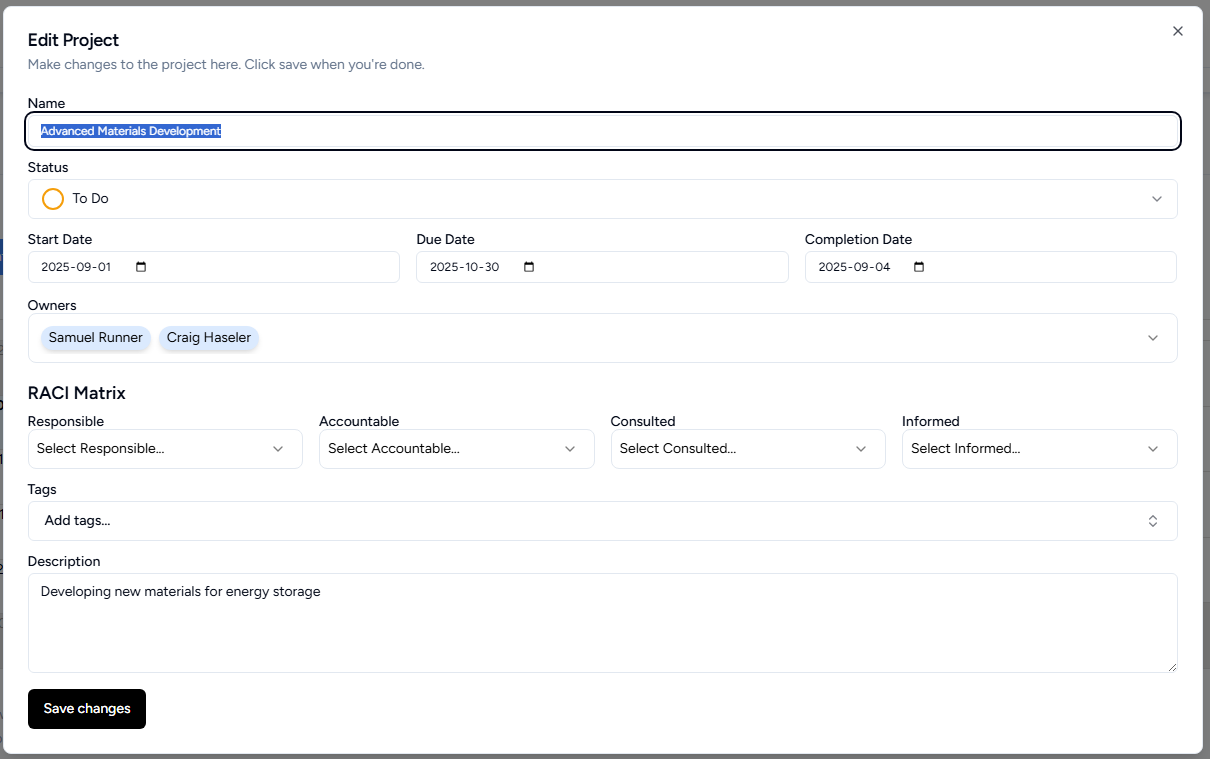
Editing a Project
Purpose: Edit project details including metadata, assignments, and settings.
- Edit the project name
- Set project status with validation warnings if status conflicts with completion date
- Set start, due, and completion dates
- Add/remove project owners
- Assign contacts to Responsible, Accountable, Consulted, and Informed roles
- Add, create, or edit project tags with multi-select dropdown
- Add a description
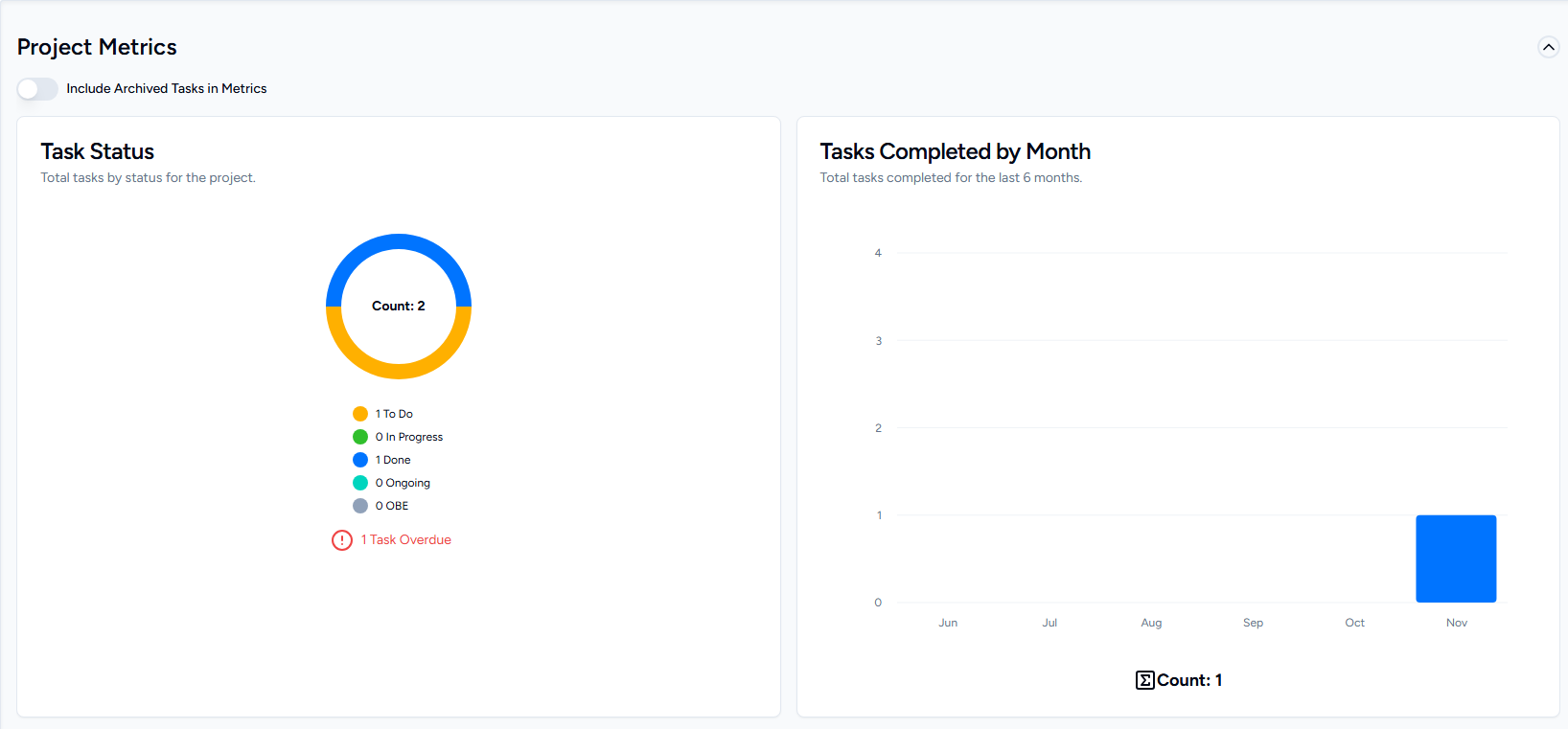
Project Metrics
Purpose: High-level analytics and status visualization for all tasks in the project.
- Include Archived Toggle: Option to include archived tasks in the metrics calculations
- Task Status Pie Chart: Visual breakdown of tasks by status (To Do, In Progress, Done, Ongoing, and OBE), and a count of tasks past their due date
- Completion Trends: Bar chart showing total tasks completed over the last 6 months (Completed tasks have a status of 'Done' or a 'Completion Date')
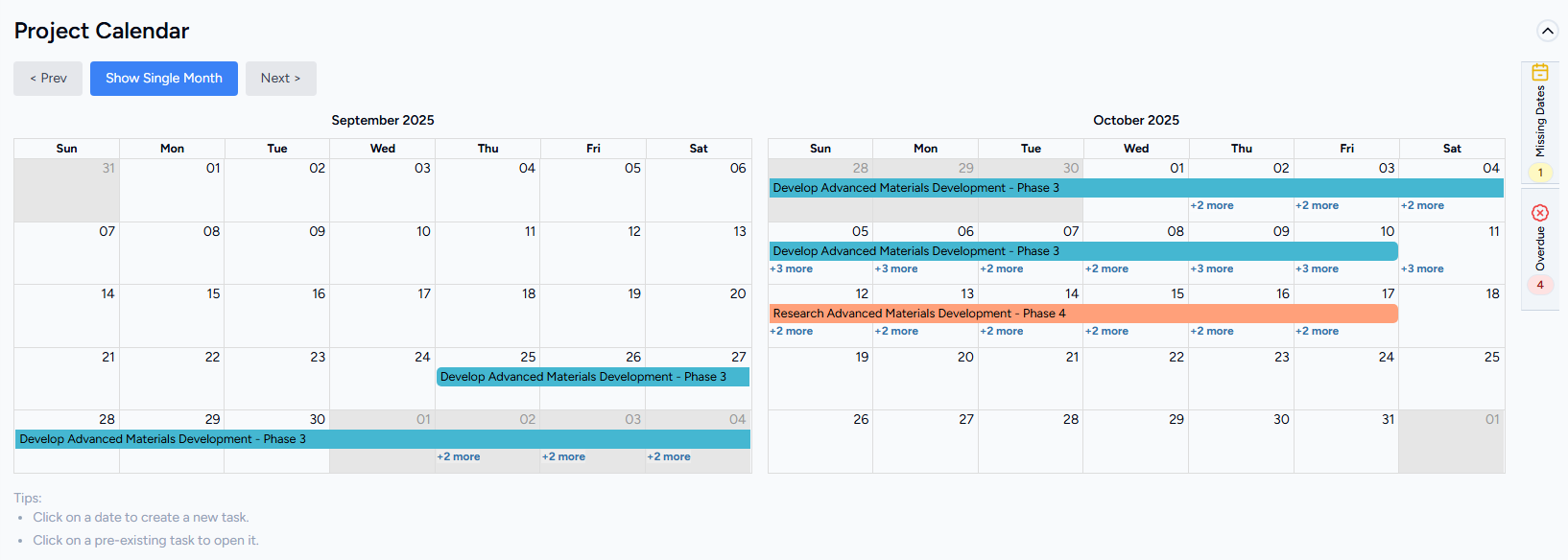
Project Calendar
Purpose: Timeline visualization of all task start and due dates, with side panels for tasks needing attention.
- Two-Month View: Displays current and next month simultaneously. Can be toggled to single-month view
- Click Navigation: Selecting a task opens that task's detail window (see below)
- Create New Task: Click on any date to create a new task with that start date (for non-readonly users)
- Tasks must have a Start and Due date to appear
Side Panel Tabs:
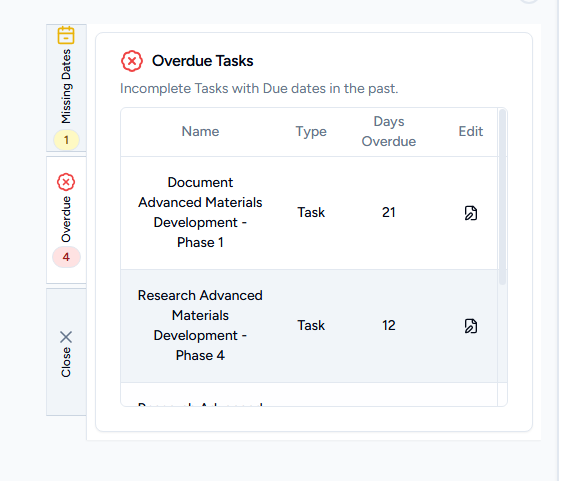
- Missing Dates Tab: Shows incomplete tasks without start or finish dates (not shown in calendar)
- Overdue Tab: Shows incomplete tasks with due dates in the past, including days overdue
Project Tasks
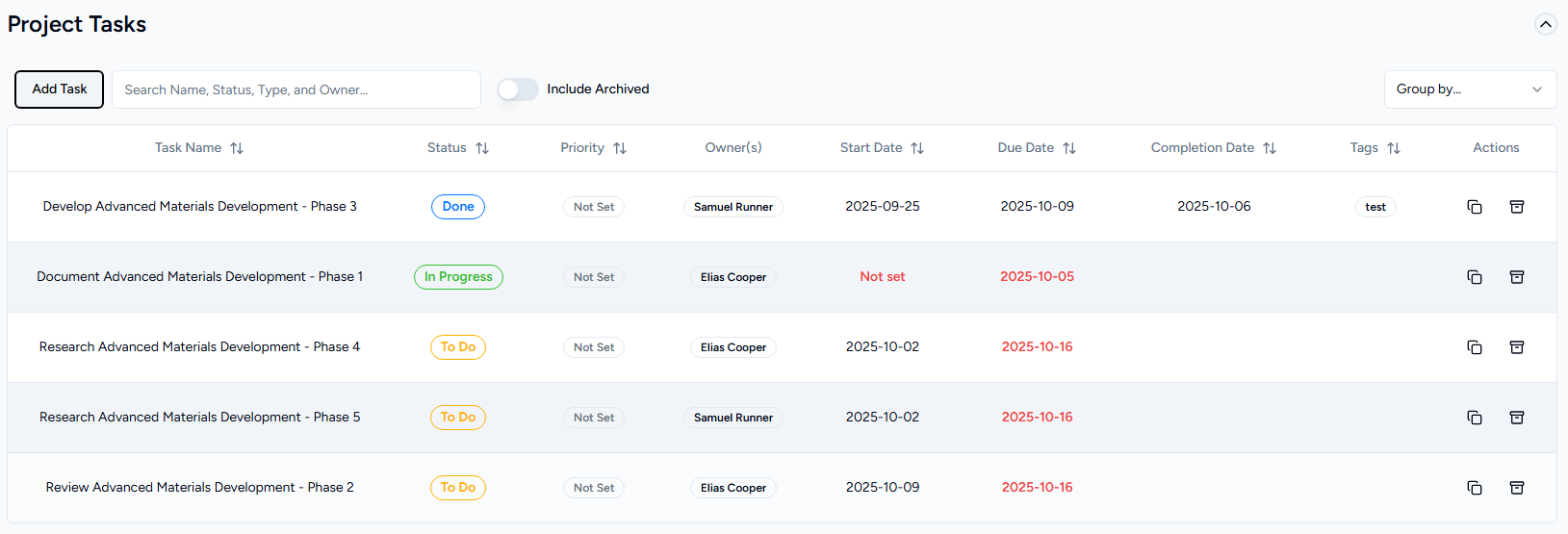
Purpose: Detailed task list with statistics, filtering, grouping, and management functionality.
- Task List: Sortable/filterable/groupable table of all active tasks (top-level only, excludes checklist items)
- Quick Navigation: Click any task row to open its detail window (see below)
- Task Details: Shows name, description, dates, status, owners, priority, and RACI assignments
For Admins, Portfolio Owners & Project Owners:
- Archive Toggle: View/include archived tasks
- Create Button: Create new tasks
- Archive/Unarchive: Archive/Unarchive tasks
- Duplicate: Create a copy of an existing task
¶ Task Window
Purpose: Create, edit, or view detailed task information.
The window adapts based on what you're doing:
- "Add New Task" - Creating a new task
- "Edit Task" - Making changes to an existing task
- "View Task" - Looking at task details without making changes
Window Header:
- Title showing what you're doing (Add/Edit/View)
- "Archived" label displayed for archived tasks
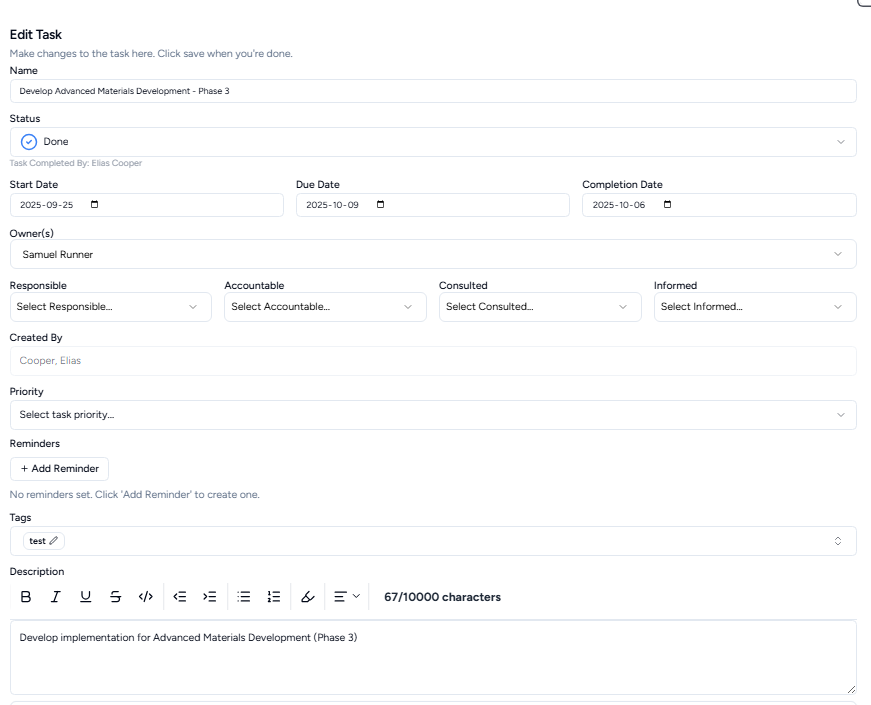
Task Form Fields:
Basic Information:
- Name: Task title (required)
- Status: Choose from To Do, In Progress, Done, or Ongoing with color indicator
- Dates: Set start date, due date, and completion date
- Status/Date Alignment: A warning appears if your status and completion date don't match (e.g., marking as Done without a completion date)

People Assignments:
- Owners: Select one or more people responsible for owning the task
- People you select as owners won't appear in the RACI options below
- RACI Matrix: Assign people to four roles:
- Responsible: Who does the work
- Accountable: Who approves/signs off
- Consulted: Who provides input
- Informed: Who needs to know
- Created By: Shows who originally created the task (cannot be changed)

Task Details:
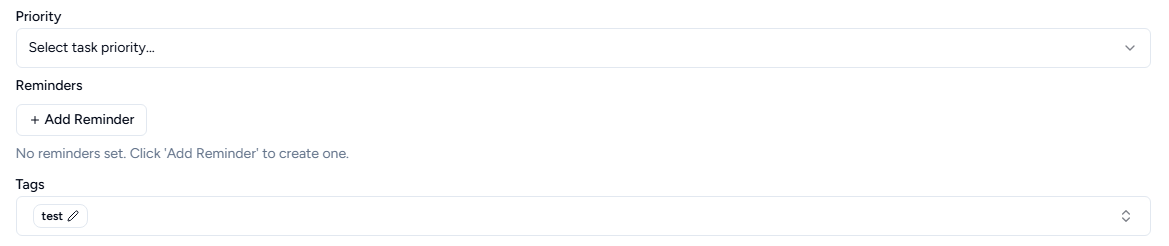
- Priority: Set importance level (High, Medium, Low)
- Reminders: Set up alerts to remind you about this task
- Add multiple reminders with specific dates/times and custom messages
- Each reminder can have its own message
- Add or remove reminders as needed
- Tags: Label tasks with keywords for easier organization
- Select from existing tags or create new ones
- Tags work across all projects
- Can rename tags
Content:
- Description: Full text editor with formatting options
- Bold, italic, lists, and other formatting
- Add comments and highlights within the description
- Works like a word processor

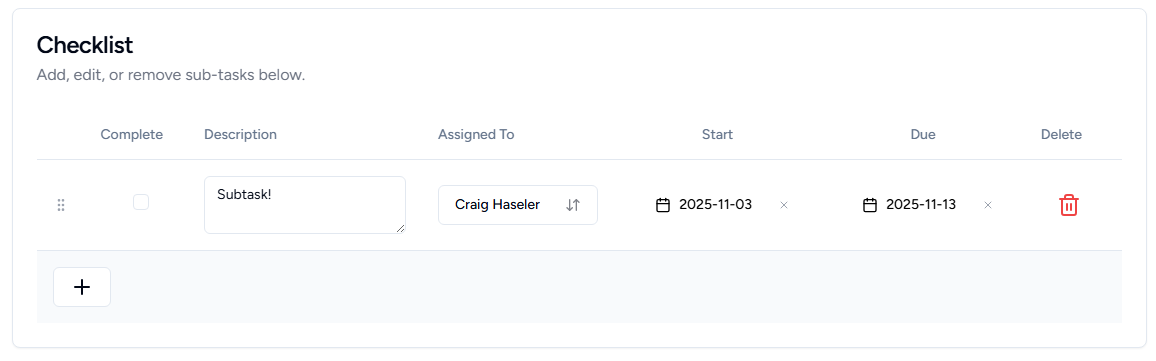
Checklist (Subtasks):
- Break down tasks into smaller checklist items
- Each checklist item can have:
- Its own name, status, dates, and assigned people
- Edit items directly in the list
- Due dates that fit within the parent task's timeframe
- Checklist items show nested under the main task
- Click a link to jump directly to a specific checklist item
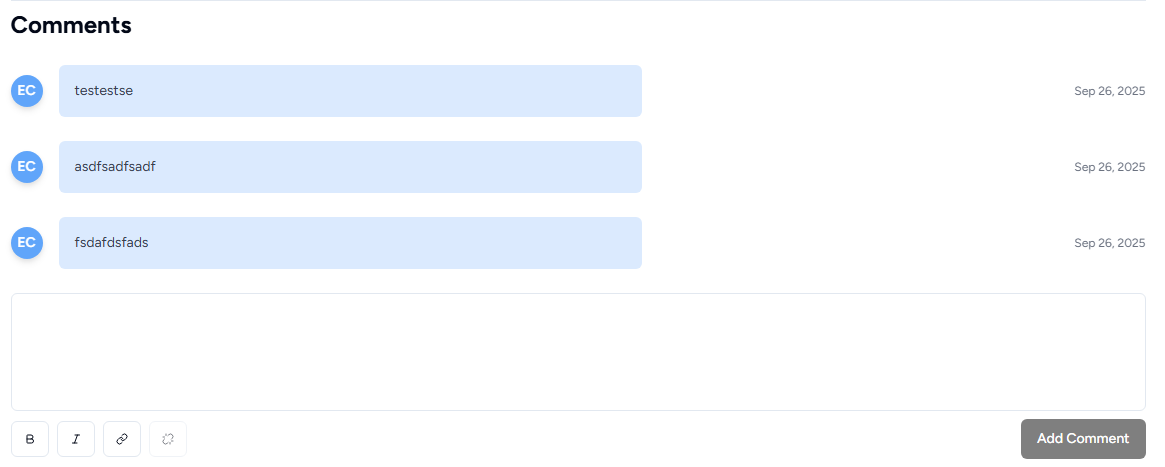
Comments Section:
Located at the bottom of the window, below a dividing line.
- Add Comment: Text editor to write new comments
- Comment List: Shows all comments with:
- Initials of person who commented
- Comment date stamp
- Edit option for your own comments
- Delete option for your own comments (asks for confirmation first)
- Comments save immediately for existing tasks
- For new tasks, comments save when you save the task